![image-1.png]](https://24983242.hs-sites-eu1.com/hs-fs/hubfs/image-1.png?height=42&name=image-1.png)
Why use the Multi-Spots feature?
The Multi-Spots mode allows you, when creating the mission, to choose to check only specific selected locations.
You will not need to go through all the locations on a face to inspect only the ones you are interested in.
Example use cases:
-
Checking a sample of locations requested by a customer or during an audit by your statutory auditor, without scanning the entire face.
-
Performing a reference-based inventory or a cycle count required by your WMS/ERP.
-
Quickly verifying the presence of strategic products before shipping.
-
Confirming that corrections or consolidations have been properly applied after an inventory.
-
Performing an empty/full inventory.
How to create a Multi-Spots mission
Creating a Multi-Spots mission follows the same procedure as a standard mission (Warehouse → Mission → Add).
Fill in the usual information:
-
the mission name,
-
select a face,
-
select an acquisition group.
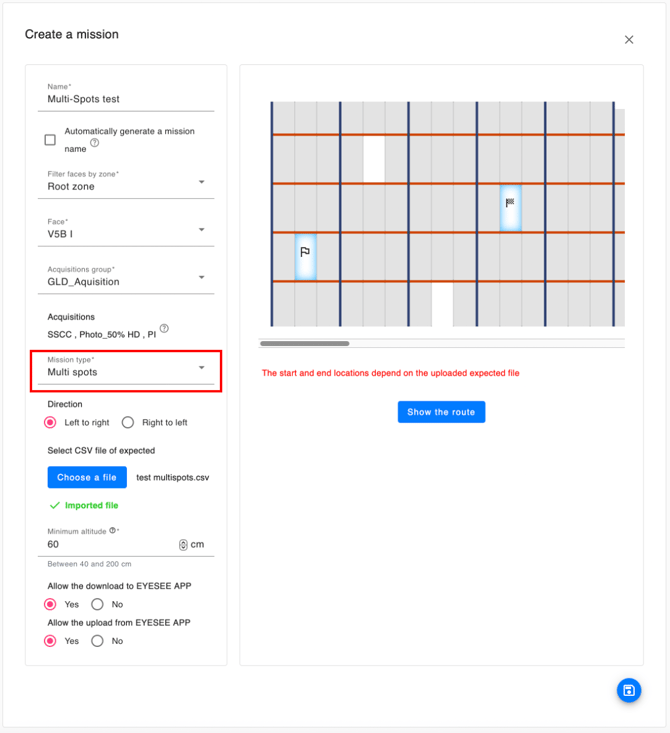
When you reach the “Mission Type” dropdown menu, click on “Multi-Spots.”
You will then see the message: “The start and end locations depend on the uploaded expected file” displayed under the mission preview.
You will then need to choose an expected file containing the locations to be checked.
You will now be able to see the locations the drone will inspect displayed in white on the face preview. Click “Draw the path” to view its flight plan.
Save your mission.